:no_upscale())
Ile naprawdę kosztuje niedostępna cyfrowo strona internetowa?
Przeczytaj historię
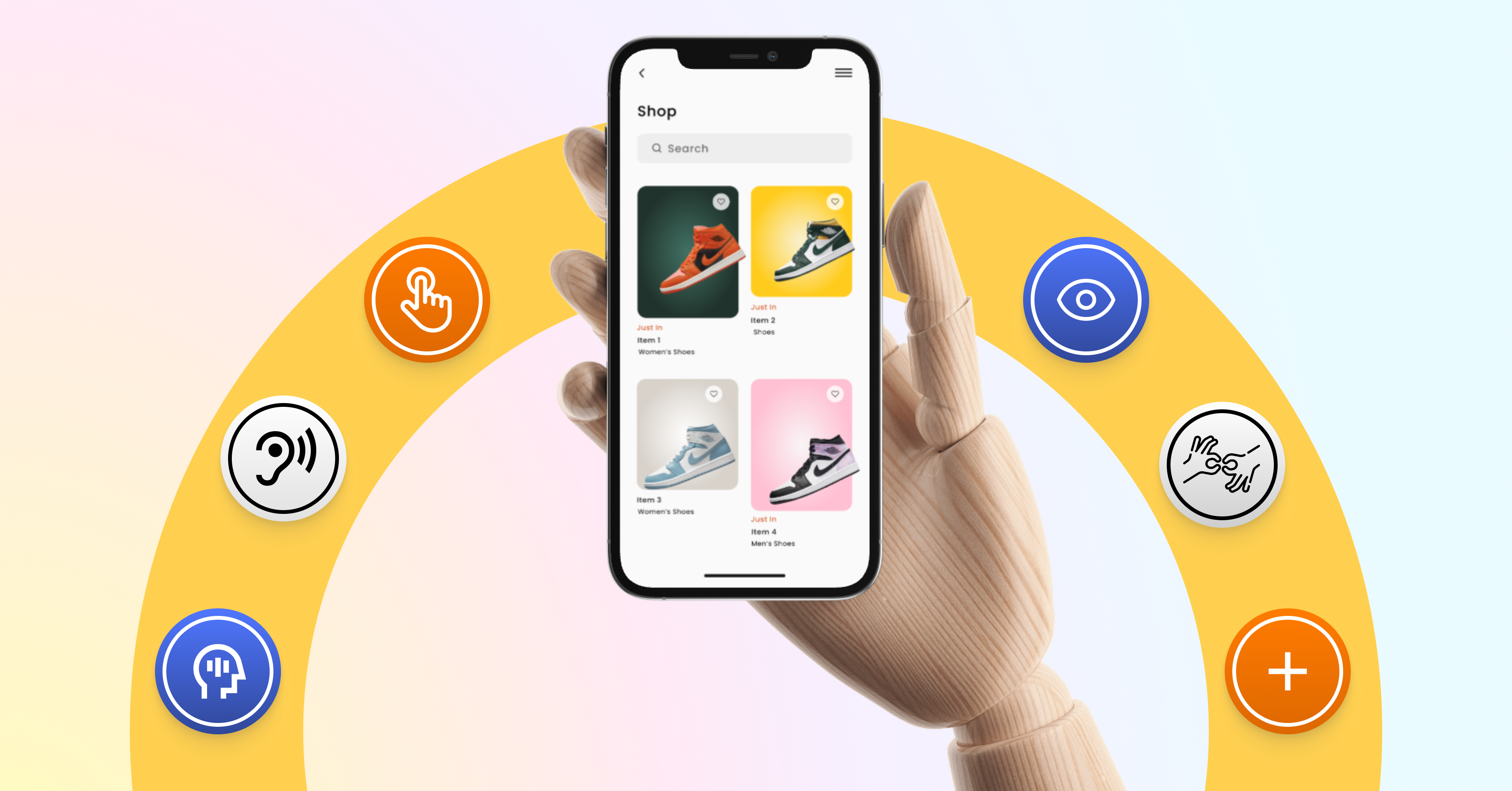 Kiedy ostatnio testowałeś aplikację i przegapiłeś problemy, z którymi borykają się użytkownicy?
Oto kilka typowych przykładów: przycisk „Kontynuuj”, który wygląda schludnie w projekcie, ale jest tak mały, że użytkownicy często go nie dostrzegają. Albo kontrast, który działa w pliku projektu, ale staje się ledwo czytelny w rzeczywistych warunkach. Albo film bez napisów, który jest niedostępny w pewnych sytuacjach.
To nie są przypadki brzegowe. To decyzje projektowe i programistyczne, które decydują o tym, czy aplikacja działa, czy nie.
Różnica: dla wielu są to chwile frustracji. Dla osób z wadami wzroku, ograniczeniami ruchowymi lub utratą słuchu nie są one wyjątkiem – to codzienne doświadczenie.
W tym właśnie tkwi prawdziwa siła nacisku: dostępność nie powinna być traktowana jako coś drugorzędnego, lecz jako integralna część projektu , rozwoju i testowania. W następnej sekcji dowiesz się, jak wcześnie identyfikować typowe bariery na etapie własnych testów i jak ich systematycznie unikać.
Wiele fundamentalnych problemów z dostępnością można już zidentyfikować w ramach istniejącego procesu pracy – bez dodatkowych narzędzi. Te trzy kontrole pomogą Ci wcześnie wykryć typowe problemy:
Zwiększ rozmiar czcionki systemowej smartfona do „Dużej”. Czy aplikacja dostosowuje się prawidłowo, czy układ jest niestabilny?
Jeśli treść jest przycięta, nakłada się na siebie lub staje się nieczytelna, jest to wyraźny znak, że nie zadbano odpowiednio o elastyczne układy, co jest szczególnie problematyczne dla użytkowników, którzy polegają na większym tekście.
Kontrast, który dobrze wygląda w narzędziu projektowym, może szybko okazać się niewystarczający w praktyce.
Przetestuj kluczowe elementy interfejsu użytkownika w realistycznych warunkach – na przykład w jasnym świetle otoczenia lub dla użytkowników z wadami wzroku. Jeśli treść staje się trudna do odczytania, nie jest to preferencja projektowa, lecz problem z dostępnością.
Czy elementy interaktywne są wystarczająco duże i rozmieszczone w odpowiednich odstępach?
Małe lub gęsto rozmieszczone przyciski często prowadzą do błędnych kliknięć – zwłaszcza podczas obsługi jedną ręką, przy drżeniu dłoni lub ograniczonej precyzji ruchów. Odpowiednie rozmiary obiektów dotykowych nie są optymalizacją dla skrajnych przypadków, lecz fundamentalnym wymogiem UX.
Jednym z najszybszych sposobów na wykrycie problemów z dostępnością jest zmiana perspektywy podczas testowania — poprzez nawigację bez wskazówek wizualnych.
Czytniki ekranu to umożliwiają. Prezentują treści w uporządkowany sposób i pokazują, jak dobrze semantyka, etykietowanie i logika nawigacji zostały wdrożone. Jednocześnie pokazują, czy aplikacja pozostaje użyteczna bez orientacji wizualnej. Dla osób z dysfunkcją wzroku jest to podstawa codziennego użytkowania.
iOS: VoiceOver (Ustawienia → Dostępność)
Android: TalkBack (Ustawienia → Dostępność)
Jak podejść do tego zagadnienia podczas testów:
Włącz czytnik ekranu i poruszaj się po aplikacji krok po kroku, przesuwając palcem od lewej do prawej. Elementy są zaznaczane i odczytywane sekwencyjnie; akcje są aktywowane dwukrotnym dotknięciem.
Spróbuj wykonać typowe zadanie z perspektywy użytkownika — na przykład dodanie produktu do koszyka lub wypełnienie formularza.
Zwróć uwagę na wynik semantyczny:
Jeśli element jest ogłoszony jedynie jako „przycisk” lub „obraz”, brakuje informacji semantycznej — użytkownicy nie wiedzą, jaką akcję on wykonuje.
Z drugiej strony, jeśli wynik jasno komunikuje, co się stanie — na przykład „Dodaj do koszyka” lub „Zdjęcie produktu: niebieska koszulka, rozmiar M” — aplikacja jest na dobrej drodze.
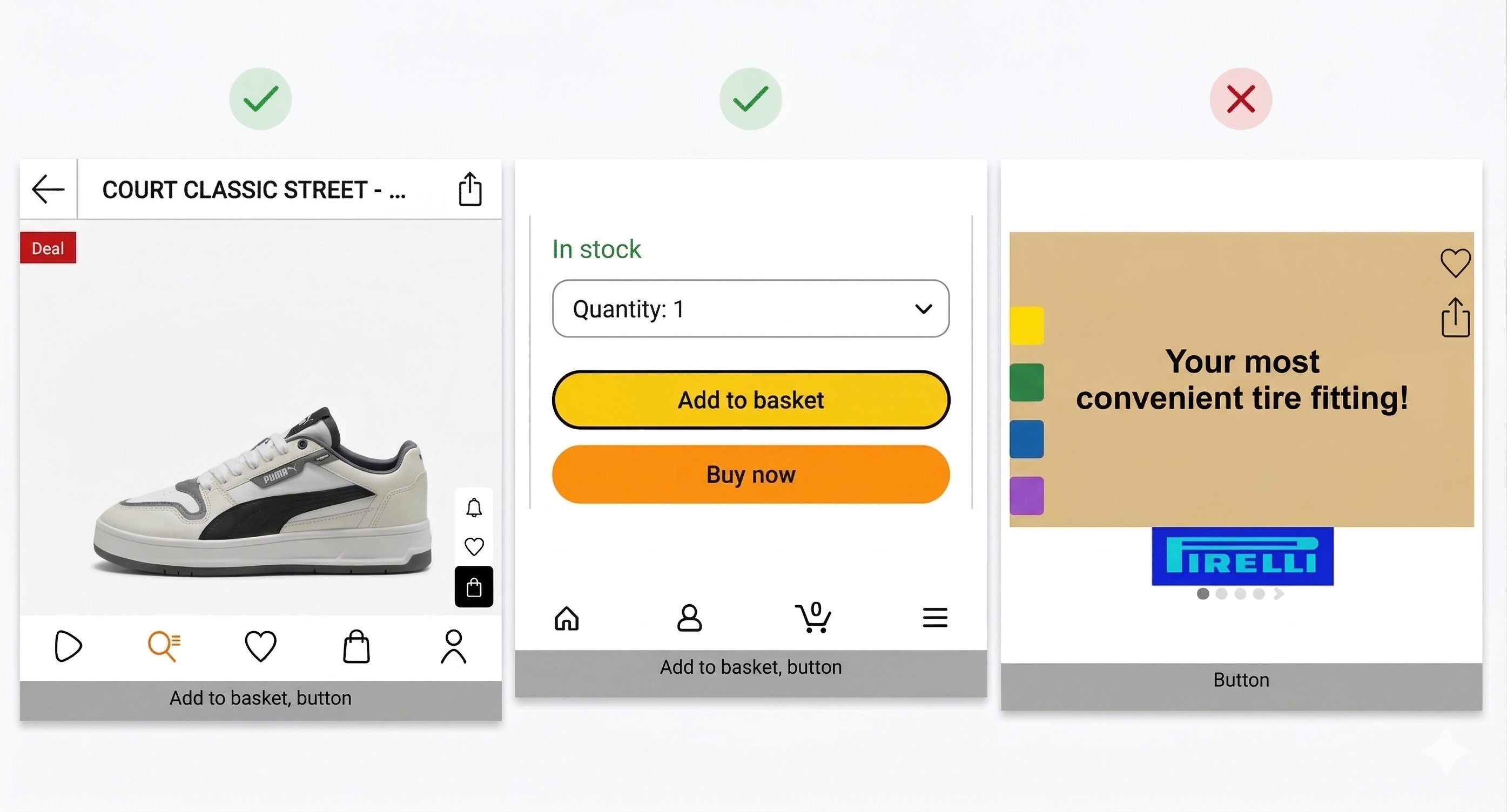 Ten test daje realistyczny obraz tego, jak bardzo dostępna jest aplikacja. Jednocześnie szybko staje się jasne: wiele problemów jest subtelnych i trudno je wiarygodnie zidentyfikować bez systematycznych testów i rzeczywistej perspektywy użytkowników.
Wiele z tych problemów pozostaje niezauważonych nawet po włączeniu czytnika ekranu. Często wynikają one z braku semantyki, niejasnych stanów lub nieprawidłowego zarządzania fokusem – i są trudne do wykrycia bez ustrukturyzowanych testów i analizy rzeczywistych zastosowań.
Poniższe przykłady pochodzą z rzeczywistych zastosowań i w praktyce zdarzają się znacznie częściej, niż można by się spodziewać.
W aplikacji zakupowej opcje filtrowania koloru lub rozmiaru mogą być widoczne, ale niedostępne dla czytnika ekranu. Elementy te nie są dostępne ani nie można ich zaznaczyć w drzewie ułatwień dostępu. Dla użytkowników ta funkcjonalność praktycznie nie istnieje.
Otwiera się menu rozwijane, ale czytnik ekranu nie informuje o zmianie stanu. Pole wyboru jest zaznaczone, ale nie ma informacji zwrotnej. Bez poprawnie zdefiniowanych stanów (np. „rozwinięte”, „zaznaczone”) użytkownicy nie mają niezbędnej orientacji.
Komunikat „Przedmiot dodany do koszyka” pojawia się na chwilę na ekranie i znika. Bez aktywnego obszaru lub komunikatu, ta informacja zwrotna nie jest przekazywana użytkownikom czytników ekranu.
Pojawia się komunikat o błędzie i blokuje interfejs – ale nie można go odrzucić ani zamknąć. Czytnik ekranu może go zasygnalizować, ale nie oferuje wyraźnego punktu skupienia ani ścieżki powrotu do przepływu.
Czytnik ekranu porusza się w obszarach, które nie są wizualnie aktywne – takich jak zwinięty kalendarz. Użytkownicy poruszają się po treściach, które nie są aktualnie użyteczne. Brak konsekwentnego zarządzania fokusem prowadzi do dezorientacji.
Zdjęcie produktu jest po prostu opisywane jako „obraz”. Bez tekstu alternatywnego brakuje kluczowych informacji, takich jak kolor, forma czy kontekst – element traci swoje znaczenie.
Pole jest określane jako „pole tekstowe” bez żadnej etykiety ani kontekstu. Użytkownicy nie wiedzą, jakich informacji się spodziewają. Bez odpowiednio powiązanych etykiet formularze stają się bezużyteczne.
Trzy kontrole opisane w tym artykule można łatwo zintegrować z istniejącym procesem pracy – bez dodatkowych narzędzi i znacznego wysiłku. Pomagają one wcześnie wykryć podstawowe problemy z dostępnością i szybciej identyfikować typowe problemy z UX.
Jednocześnie, doświadczenia w świecie rzeczywistym pokazują, że dostępność sięga znacznie głębiej. Wiele z opisanych powyżej problemów wynika z braku semantyki, niejasnych stanów lub nieprawidłowego zarządzania fokusem – i nie da się ich w pełni zidentyfikować bez systematycznych testów i rzeczywistej perspektywy użytkowników.
Tutaj właśnie pojawia się Eye-Able: łączymy testy techniczne z perspektywą osób, które na co dzień korzystają z aplikacji z czytnikami ekranu i innymi technologiami wspomagającymi — odkrywając bariery, które często pozostają ukryte w tradycyjnych procesach zapewniania jakości.
Wspólnie z naszym partnerem Abra łączymy automatyczne kontrole z ręczne testowanie przez nasz zespół ekspertów —zapewniając kompleksowy podgląd dostępności Twojej aplikacji bezpośrednio w procesach rozwoju i zapewnienia jakości.
Automatyczne testy identyfikują typowe problemy techniczne, takie jak nieprawidłowe skalowanie tekstu, niewystarczający kontrast czy brakujące etykiety. Ręczne testy i testy z udziałem prawdziwych użytkowników ujawniają, jak te problemy wpływają na rzeczywiste użytkowanie – dokładnie tam, gdzie analiza oparta wyłącznie na narzędziach osiąga swoje granice.
Dostępność cyfrowa decyduje o tym, czy klienci w ogóle mogą robić zakupy. Sprawdź dostępność swojej witryny już teraz – i zmniejsz ryzyko prawne, zanim stanie się problemem.
Ile naprawdę kosztuje niedostępna cyfrowo strona internetowa?
Przeczytaj historię:no_upscale())
Zmiany w zespole kierowniczym w Eye-Able: Oliver Berchtold
Przeczytaj historię:no_upscale())
Jak sprawić by Twoją strona internetowa była zgodną z przepisami o Dostępności Cyfrowej w 8 krokach
Przeczytaj historię:no_upscale())
Wezwania dotyczące dostępności w Austrii? Co europejskie firmy muszą wiedzieć już teraz
Przeczytaj historię:no_upscale())
Przypadek Carrefoura: Czego naprawdę uczy nas o dostępności
Przeczytaj historię:no_upscale())
Ręczne testy dostępności: Dlaczego potrzebujesz czegoś więcej niż testów automatycznych
Przeczytaj historięSkontaktuj się z nami, a chętnie Ci pomożemy.
:no_upscale():format(png))
:no_upscale():format(png))